

Microsoft 365 is reliable, secure, and built on resilient cloud infrastructure. But that does not mean every email, file, Teams message, or SharePoint document is automatically protected in the way most businesses expect. Understanding where Microsoft’s responsibility ends and yours begins is key to avoiding costly data loss.
If Microsoft 365 only handles basic email, its built-in recovery tools may be enough. But if it stores critical business data, a dedicated backup strategy is essential. Whether using Microsoft 365 Backup, third-party solutions, or both, ensure you know what can be restored, how quickly, and who’s responsible before data loss occurs.
The real question is not, “Does Microsoft protect Microsoft 365?” It does.
The better question is: Can your business quickly recover the right data after accidental deletion, ransomware, employee misuse, admin error, or a retention gap?
If you’re unsure, it’s time to review your Microsoft 365 backup strategy before you need it.
Short Answer: Usually, Yes, But It Depends on Your Risk
Most businesses should have a backup strategy for Microsoft 365 data, especially if they rely on Outlook, SharePoint, OneDrive, and Teams for daily operations.
That does not always mean the same thing for every company. Some businesses may use Microsoft’s native retention tools. Some may use Microsoft 365 Backup. Others may need a third-party backup platform that keeps a separate copy of Microsoft 365 data.
The right answer depends on:
- How long you need to recover deleted data
- Whether you need point-in-time restore
- Whether you need to restore data after ransomware
- Whether former employee data must remain searchable
- Whether compliance, legal, or client requirements apply
- Whether you want a backup copy outside the Microsoft 365 environment
- How quickly your business needs to recover after an incident
Microsoft’s cloud shared responsibility model makes one point clear: even in SaaS, the customer owns the data, identities, configurations, and access decisions. Microsoft runs the platform, but your business is still responsible for protecting its data and making the right recovery choices.
What Microsoft 365 Already Protects
Microsoft 365 includes strong built-in resilience. It is designed to keep services available, protect against infrastructure failure, and give users and admins several recovery options.
For example, SharePoint and OneDrive include versioning and recycle bin recovery. Microsoft says SharePoint and OneDrive retain at least 500 file versions by default, and deleted files may be recoverable from the recycle bin for 93 days.
Exchange Online also includes deleted item recovery. However, deleted item retention is 14 days by default and can be increased to a maximum of 30 days for mailboxes.
Microsoft also offers Microsoft 365 Backup, a paid backup and restore service for OneDrive, SharePoint, and Exchange Online. Microsoft describes it as a business continuity tool for ransomware, accidental deletion, malicious deletion, and overwrite events. It supports fast backup, restore points, and restoration to original or new locations.
These tools are valuable. They reduce risk. But they do not remove the need to plan for recovery.

Where Microsoft 365 Recovery Can Fall Short
Microsoft 365’s built-in tools are not always enough when the issue is bigger than a single deleted file.
Common gaps include:
Deleted data outside the recovery window.
Deleted data outside the recovery window.
If an email, mailbox, or file is deleted and nobody notices until weeks or months later, the native recovery window may already be gone. Deleted Exchange mailboxes are recoverable for 30 days; after that, they are permanently deleted and cannot be recovered through the standard deleted mailbox process.
Ransomware or mass file changes.
Ransomware or mass file changes.
Version history can help when ransomware modifies files, but recovery becomes harder when many users, libraries, folders, and Teams-connected SharePoint sites are affected. Microsoft 365 Backup is designed to help with this scenario, but it still needs to be enabled, scoped, monitored, and tested before an incident happens.
Former employee data.
Former employee data.
A common issue raised by IT admins is the need to recover or search data from a former employee months after departure. If licenses, retention policies, and backup policies were not handled correctly during offboarding, important mailbox or OneDrive data may be difficult or impossible to recover. Microsoft 365 Backup can retain protected OneDrive and Exchange backups for one year from the date the backup was created when a user is removed or deleted, but that only helps if the data was already protected by the backup policy.
Teams complexity.
Teams complexity.
Teams is not just one data location. Teams chat and channel messages use Teams storage, with compliance copies stored in hidden Exchange mailbox folders. Teams files are stored in OneDrive or SharePoint depending on how they are shared. Microsoft notes that Teams chat and channel messages require Teams-specific retention policies and are not included in Exchange mailbox retention policies.
Retention policies are not simple restore tools.
Retention policies are not simple restore tools.
Microsoft Purview retention policies are excellent for compliance, legal hold, and data lifecycle management. They can apply to Exchange, SharePoint, OneDrive, Teams chats, Teams channel messages, Microsoft 365 Groups, and other locations. But retention is not the same as backup. Retention helps preserve or delete information according to policy; backup is about restoring usable data quickly after loss, corruption, or attack.
Retention Is Not the Same as Backup
This is where many businesses get confused.
A retention policy answers questions like:
| How long should we keep this type of data? |
| When should it be deleted? |
| What must be preserved for compliance or legal reasons? |
| Can users permanently delete certain records? |
A backup strategy answers different questions:
| Can we restore this mailbox, folder, library, or site to a previous point in time? |
| Can we recover after ransomware changes thousands of files? |
| Can we restore data to another location without overwriting current work? |
| Can we recover after an accidental admin change? |
| Can we prove that our backups work? |
Both matter, but they serve different purposes.
A business may need retention for compliance and backup for recovery. One should not be treated as a complete replacement for the other.
Microsoft 365 Backup vs Third-Party Backup
There are now three practical options for Microsoft 365 data protection.
| Option | Best For | Limitations |
| Built-in recovery tools | Basic accidental deletion recovery | Short recovery windows, limited large-scale recovery, not a full backup strategy |
| Microsoft Purview retention | Compliance, legal hold, lifecycle management | Not designed as a simple point-in-time restore tool |
| Microsoft 365 Backup | Fast recovery for OneDrive, SharePoint, and Exchange Online | Must be enabled and managed; not the same as an independent off-platform backup |
| Third-party Microsoft 365 backup | Independent restore workflows, longer retention, alternate storage options, broader admin control | Requires vendor selection, licensing, monitoring, and restore testing |
Microsoft 365 Backup is a major improvement because it provides backup and restore capabilities for OneDrive, SharePoint, and Exchange Online. It can restore data to the original location or a new location, and Microsoft publishes restore point frequency targets for different workloads.
However, businesses should look carefully at architecture. Microsoft says Microsoft 365 Backup keeps data within the Microsoft 365 data trust boundary and honours existing geographic residency. That can be a benefit for data residency, but it may not satisfy businesses that specifically require a separate backup copy outside Microsoft-controlled infrastructure.
Some third-party tools also integrate with Microsoft 365 Backup Storage, while others maintain separate backup storage. The right choice depends on whether your priority is fast Microsoft-native restore, independent storage, long-term retention, compliance reporting, or a single backup console across Microsoft 365, servers, endpoints, and other systems.
When You Should Add Microsoft 365 Backup Protection
A business should strongly consider Microsoft 365 backup protection if any of the following are true:
- You rely on SharePoint or Teams files for daily operations
- Your staff stores important work in OneDrive
- Email history is important for clients, projects, orders, HR, finance, or legal records
- You have users who regularly create, move, rename, or delete shared files
- You have had past issues with accidental deletion or missing files
- You are concerned about ransomware
- You need to retain former employee data
- You have cyber insurance, compliance, or client security requirements
- You cannot afford days of manual recovery after an incident
- You do not regularly test Microsoft 365 restore procedures
The Canadian Centre for Cyber Security recommends encrypted offline backups and emphasizes that backups should be tested because connected backups can also be affected by threat actors. That principle applies to Microsoft 365 too: having a backup tool is not enough if no one monitors it, protects it, or confirms that restores actually work.
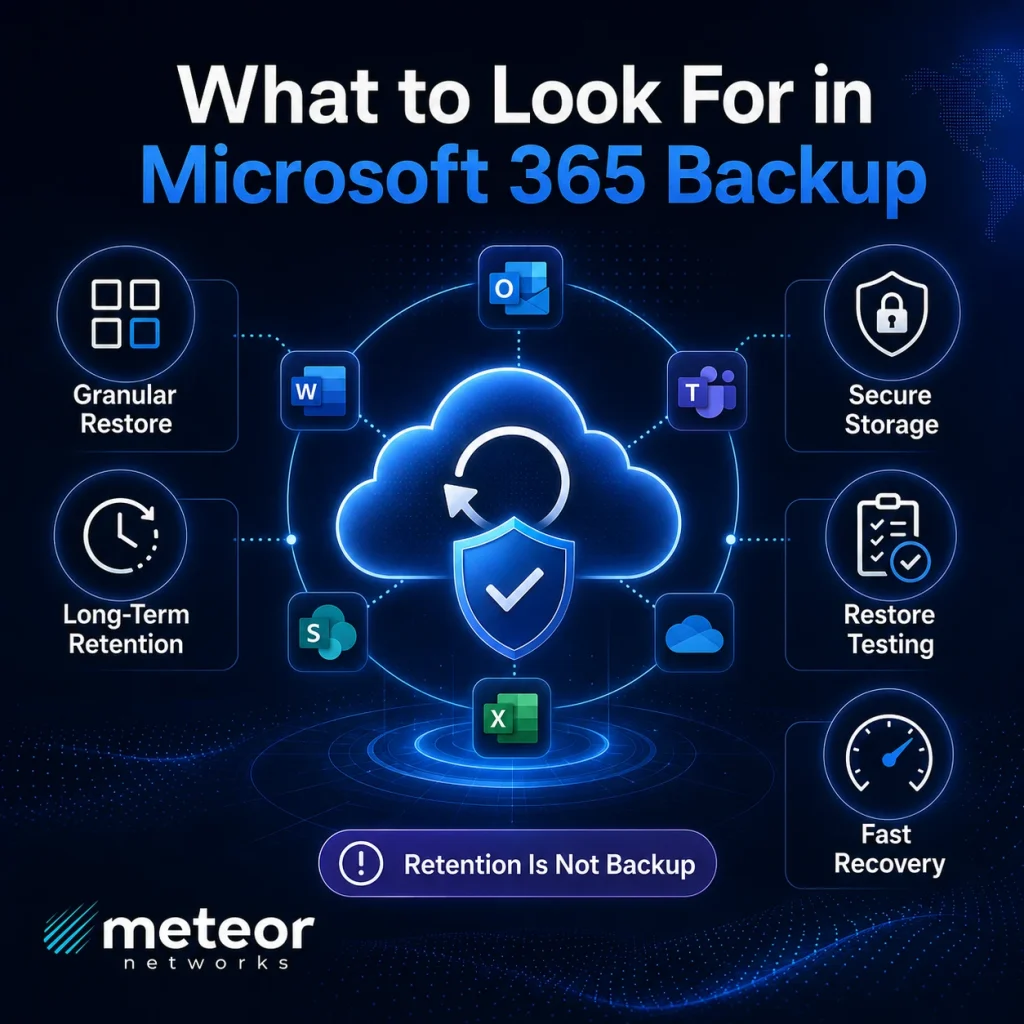
What to Look for in a Microsoft 365 Backup Solution
The best Microsoft 365 backup solution is not always the one with the longest feature list. It is the one that matches your recovery needs.
Before choosing a platform, ask:
What does it back up?
Confirm coverage for Exchange Online, OneDrive, SharePoint, Teams files, Teams messages, Microsoft 365 Groups, shared mailboxes, public folders, and Entra ID if needed.
How far back can we restore?
Match retention to business needs, not vendor defaults.
Can we restore granular items?
Look for file, folder, mailbox item, mailbox, site, and full-user restore options.
Can we restore to another location?
Alternate-location restore is useful when you do not want to overwrite current production data.
Where is the backup stored?
For some businesses, Microsoft-native storage is acceptable. Others may require independent storage, Canadian data residency, immutable storage, or off-platform recovery.
Is the backup protected from admins and attackers?
Backup access should use MFA, role-based access, admin alerts, audit logs, and separation of duties.
How often are restore tests performed?
A backup that has never been tested is only a hope. Restore testing should be part of the service.
Who owns the recovery process?
During an incident, your team should not be figuring out restore steps for the first time.
How Meteor Networks Helps
Meteor Networks helps businesses protect Microsoft 365 from both security gaps and recovery gaps. That includes reviewing:
- Microsoft 365 security settings
- User and admin access
- SharePoint and OneDrive exposure
- Retention and recovery settings
- Backup requirements
- Ransomware recovery readiness
- Former employee offboarding risk
- Ongoing Microsoft 365 configuration changes
For many businesses, the issue is not that Microsoft 365 is unsafe. The issue is that Microsoft 365 is powerful, and the default setup may not match the way the business actually uses email, Teams, OneDrive, and SharePoint.
Meteor helps close that gap by reviewing the environment, recommending the right backup approach, and making sure the recovery plan is practical before something goes wrong.
Final Answer: Do You Need Third-Party Backup for Microsoft 365?
If Microsoft 365 is only used for basic email and your business can tolerate limited recovery windows, built-in tools may be enough.
But if Microsoft 365 stores important business data, client files, project history, financial records, operational documents, Teams files, or employee mailboxes, you should have a dedicated backup strategy.
That may mean Microsoft 365 Backup, a third-party backup platform, or a combination of retention, backup, and security monitoring.
The goal is simple: when something is deleted, encrypted, overwritten, or lost, your business should know exactly what can be restored, how far back it can go, how long recovery will take, and who is responsible for making it happen.
Do not wait until the data is gone to find out what Microsoft 365 can and cannot recover.
FAQs
Microsoft 365 includes resilience, versioning, recycle bins, deleted item recovery, retention options, and Microsoft 365 Backup if enabled. But businesses should not assume every file, email, mailbox, Teams item, or deleted user can be recovered indefinitely.
No. Retention is mainly for preserving or deleting data according to policy. Backup is for restoring data after deletion, corruption, ransomware, or other data loss events.
Version history and recycle bin recovery may help in some ransomware scenarios. Microsoft 365 Backup can also help with point-in-time restore for protected OneDrive and SharePoint data. The key is having protection configured before the incident happens.
Usually, yes. Teams data is spread across multiple Microsoft 365 services. Files may live in SharePoint or OneDrive, while Teams messages require Teams-specific retention handling. A backup review should confirm what Teams data the business needs to recover and what the selected backup tool actually protects.
Control. A dedicated backup platform can provide longer retention, easier restore workflows, granular recovery, alternate-location restore, and in some cases a separate copy outside the Microsoft 365 environment.
Yes. Meteor Networks can review your Microsoft 365 environment, identify backup and retention gaps, and recommend the right approach based on your users, data, compliance needs, and recovery expectations.