

For small and mid-sized businesses, especially those without a dedicated internal IT security team, the biggest risks are often not advanced attacks. They are missed settings, old permissions, weak access controls, and false assumptions about what Microsoft 365 does by default.
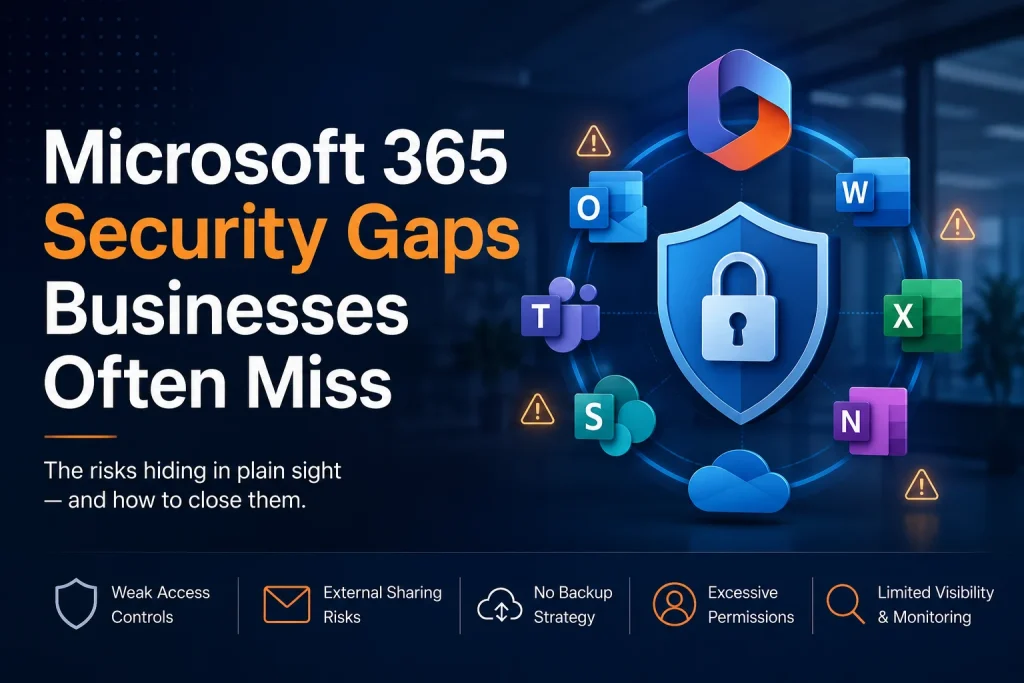
Microsoft 365 is the daily workspace for many businesses. Email, Teams, SharePoint, OneDrive, Word, Excel, and cloud file sharing often sit at the centre of operations.
That also makes Microsoft 365 one of the most important security environments in the business.
The problem is that many companies assume Microsoft 365 is secure simply because it is hosted by Microsoft. Microsoft protects the cloud platform, but each business is still responsible for how its tenant is configured, who has access, how data is shared, and how accounts are monitored.
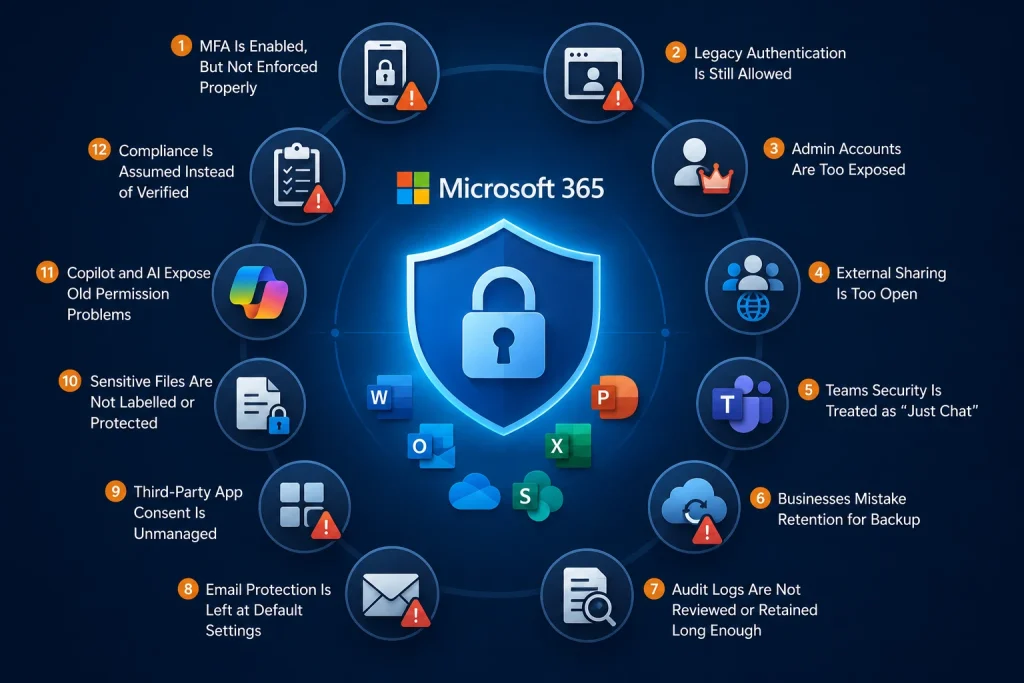
Below are the Microsoft 365 security gaps businesses often miss.
1. MFA Is Enabled, But Not Enforced Properly
MFA Is Enabled, But Not Enforced Properly
Multi-factor authentication is one of the most important Microsoft 365 security controls, but “MFA is turned on” does not always mean the business is fully protected.
Common gaps include:
- Some users are excluded from MFA
- Admin accounts are not forced to use MFA every time
- Legacy per-user MFA settings are confused with modern Conditional Access
- Users rely on weaker methods such as SMS
- Break-glass admin accounts are not created or monitored
- MFA registration is incomplete for some employees
Microsoft 365 environments should use security defaults at minimum, or Conditional Access where licensing allows. Conditional Access provides stronger control because businesses can create rules based on user role, device, location, risk level, and application.
For example, a business may allow normal access from a trusted device in Canada, but block or challenge access from an unfamiliar location, unmanaged device, or risky sign-in attempt.
2. Legacy Authentication Is Still Allowed
Legacy Authentication Is Still Allowed
Legacy authentication is one of the most overlooked Microsoft 365 security gaps.
Older protocols such as POP, IMAP, SMTP AUTH, and older Office clients do not support modern authentication properly. This matters because attackers can use these older protocols to bypass MFA.
A business may believe every user is protected by MFA, while an old mail app, scanner, copier, or third-party tool is still connecting through legacy authentication.
This is especially common in businesses that have been using Microsoft 365 for many years. Old devices, old Outlook versions, and old line-of-business applications may still be active in the background.
Businesses should review sign-in logs, identify legacy authentication usage, replace outdated tools, and block legacy authentication once it is safe to do so.
3. Admin Accounts Are Too Exposed
Admin Accounts Are Too Exposed
Microsoft 365 admin accounts are high-value targets. If an attacker gets access to a Global Administrator account, they may be able to change security settings, create new users, access mailboxes, modify sharing policies, or disable protections.
Common admin account mistakes include:
- Too many Global Administrators
- Admins using the same account for daily email and admin work
- No separate privileged admin accounts
- No emergency access accounts
- No review of admin role assignments
- Former employees or vendors still holding elevated permissions
Admin access should follow least privilege. Not every IT task requires Global Administrator access. Where possible, users should only have the specific admin role needed for their job.
For added protection, admin accounts should use stronger authentication, be separated from normal daily-use accounts, and be reviewed regularly.
4. External Sharing Is Too Open
External Sharing Is Too Open
SharePoint and OneDrive make collaboration easy, but they can also create serious data exposure if sharing settings are too broad.
Common issues include:
- “Anyone with the link” sharing
- Files shared with personal email addresses
- Old guest users still active
- Sensitive folders shared with too many people
- Company-wide links used for confidential content
- No review process for external access
This is not always caused by careless employees. In many cases, staff are trying to get work done quickly. If the approved process feels slow or restrictive, users may find workarounds.
The goal is not to block collaboration. The goal is to create safe collaboration rules. Businesses should define who can share externally, what can be shared, which domains are allowed, when links expire, and who reviews guest access.
5. Teams Security Is Treated as “Just Chat”
Teams Security Is Treated as “Just Chat”
Many businesses think of Microsoft Teams as a messaging app. In reality, Teams is connected to SharePoint, OneDrive, Exchange, guest access, meeting recordings, file sharing, apps, and third-party integrations.
That means Teams security is Microsoft 365 security.
Common Teams gaps include:
- External users can contact employees too freely
- Guests stay in Teams after a project ends
- Meeting recordings are stored without clear retention rules
- Files shared in chats are not reviewed
- Users install third-party apps without approval
- Sensitive conversations happen in unmanaged channels
Businesses should review Teams external access, guest access, app permissions, meeting policies, recording settings, and retention requirements.
A good Teams setup should support collaboration without leaving confidential data scattered across chats, files, and unmanaged guest workspaces.
6. Businesses Mistake Retention for Backup
Businesses Mistake Retention for Backup
This is one of the most important Microsoft 365 gaps.
Microsoft 365 has retention, recycle bins, version history, and recovery features. These are helpful, but they are not the same as a complete backup strategy.
Retention policies are mainly built for compliance and data lifecycle management. Backup is built for recovery.
A business may need backup when:
- A user deletes important files and the issue is discovered too late
- A mailbox is compromised and emails are deleted
- Ransomware encrypts synced OneDrive files
- A SharePoint site is damaged
- Data must be restored to a specific point in time
- A departed employee’s data is needed months later
Microsoft now offers Microsoft 365 Backup capabilities for Exchange, SharePoint, and OneDrive, and many businesses also use third-party Microsoft 365 backup services.
The key point is simple: do not assume Microsoft 365 automatically gives your business the restore options it needs. Confirm what is protected, how long it is protected, and how quickly it can be restored.
7. Audit Logs Are Not Reviewed or Retained Long Enough
Audit Logs Are Not Reviewed or Retained Long Enough
Audit logs are critical during a security incident. They help answer questions such as:
- Who accessed the mailbox?
- Was data downloaded?
- Was a forwarding rule created?
- Which files were shared externally?
- Was an admin setting changed?
- Did an attacker create a new user or app?
Many businesses only realize logs are missing after an incident has already happened.
Microsoft 365 audit capabilities vary by license and configuration. Some logs may be enabled by default, but businesses still need to confirm that audit logging is active, retention is long enough, and someone is reviewing alerts or reports.
Security visibility is not just about collecting logs. It is about knowing which events matter and acting on them quickly.
8. Email Protection Is Left at Default Settings
Email Protection Is Left at Default Settings
Email remains one of the most common ways attackers reach businesses. Phishing, spoofing, malicious attachments, fake invoices, password reset scams, and vendor impersonation all target Microsoft 365 users.
Many companies rely only on default email protection. That may not be enough.
Common email security gaps include:
- Anti-phishing policies are not tuned
- Impersonation protection is not configured
- Safe Links and Safe Attachments are not fully applied
- Users can click through unsafe links
- Internal phishing protection is weak
- SPF, DKIM, and DMARC are missing or misconfigured
- Suspicious forwarding rules are not monitored
Microsoft Defender for Office 365 provides stronger protection, but it still needs proper setup. Businesses should not assume the default policy matches their risk level.
9. Third-Party App Consent Is Unmanaged
Third-Party App Consent Is Unmanaged
Microsoft 365 integrates with many third-party apps. Some are useful. Others request broad access to mail, calendars, files, contacts, or user profiles.
A major hidden risk is app consent.
In some attacks, the user does not give away their password. Instead, they approve a malicious app that asks for access to Microsoft 365 data. Once approved, the app may continue accessing data until the permission is revoked.
Common app consent gaps include:
- Users can approve apps without admin review
- Old apps remain connected after they are no longer used
- Apps have broader permissions than needed
- No one reviews enterprise applications
- Admin consent is granted without checking the permission scope
Businesses should restrict user consent, require admin review for apps, remove unused enterprise applications, and review high-risk permissions such as mail, file, calendar, and offline access.
10. Sensitive Files Are Not Labelled or Protected
Sensitive Files Are Not Labelled or Protected
Many businesses store sensitive information in Microsoft 365, including contracts, HR records, financial reports, client files, legal documents, insurance information, and internal procedures.
The gap is that the files are often treated the same as ordinary documents.
Microsoft Purview sensitivity labels can help classify and protect data. For example, a business can apply labels such as Public, Internal, Confidential, or Highly Confidential. Labels can also control encryption, sharing, access, and visual markings.
Without classification, employees may not know which files need extra care. Sensitive documents may be shared externally, downloaded to personal devices, or exposed through broad SharePoint permissions.
Data security starts with knowing what data you have and how sensitive it is.
11. Copilot and AI Expose Old Permission Problems
Copilot and AI Expose Old Permission Problems
Microsoft 365 Copilot can be powerful, but it also makes old permission problems more visible.
Copilot works with data users already have permission to access. If a user has access to overshared SharePoint sites, old files, confidential folders, or stale project data, Copilot may be able to surface information from those locations.
The issue is not that Copilot ignores permissions. The issue is that many businesses already have too many permissions in place.
Before enabling Copilot broadly, businesses should review:
- Overshared SharePoint sites
- Inactive or ownerless sites
- Guest access
- Company-wide links
- Sensitive files without labels
- Old content that no longer needs to be searchable
- Permissions inherited from years of ad hoc sharing
AI readiness and Microsoft 365 security now overlap. A business that wants to use Copilot safely needs clean permissions, clear data ownership, and stronger information protection.
12. Compliance Is Assumed Instead of Verified
Compliance Is Assumed Instead of Verified
Many Ontario and Canadian businesses use Microsoft 365 to store personal information, client records, employee data, financial details, and confidential business files.
Using Microsoft 365 does not automatically make a business compliant with privacy or security obligations.
Businesses still need to apply appropriate safeguards, limit access, train employees, manage vendors, retain data properly, and respond to security incidents.
For organizations subject to privacy requirements such as PIPEDA, security safeguards should match the sensitivity of the personal information being handled. That means a company storing financial, legal, health, HR, or client information should use stronger protection than a company storing only low-risk public documents.
Compliance is not a checkbox. It requires configuration, documentation, monitoring, and regular review.
What Businesses Should Review First
Microsoft 365 security can feel overwhelming, but the first review does not need to be complicated.
Start with these areas:
- Confirm MFA is enforced for all users and admins
- Block legacy authentication
- Review Global Administrator and privileged roles
- Check external sharing in SharePoint, OneDrive, and Teams
- Review guest users and third-party app permissions
- Confirm Microsoft 365 backup and recovery coverage
- Check audit logging and alerting
- Strengthen email security policies
- Apply sensitivity labels to confidential data
- Review Copilot readiness before enabling AI broadly
These steps can reduce a large amount of Microsoft 365 risk without slowing the business down.
Need Help Finding and Closing Microsoft 365 Security Gaps?
Microsoft 365 security is not something businesses should check once and forget. Settings change, new security recommendations become available, users are added, permissions expand, and third-party apps can introduce new risks over time.
Meteor Networks helps businesses review and continuously monitor their Microsoft 365 environment using security assessment tools such as InsideAgent. This allows us to scan your Microsoft 365 tenant, identify configuration gaps, review security settings, and help ensure important controls stay aligned with current best practices.
With ongoing monitoring in place, we can also be alerted when something changes, such as a risky setting being enabled, a security control being weakened, or a new Microsoft 365 security recommendation becoming available.
Instead of waiting for a breach, failed audit, or user-reported issue, Meteor helps your business stay ahead of Microsoft 365 security risks with regular visibility, practical recommendations, and proactive support.
Contact Meteor Networks to schedule a Microsoft 365 Security Review.