

A client needs an updated agreement. Your team knows someone saved it in Microsoft 365, but finding it means searching email attachments, Teams messages, and a colleague’s shared folder. Then you discover three different versions.
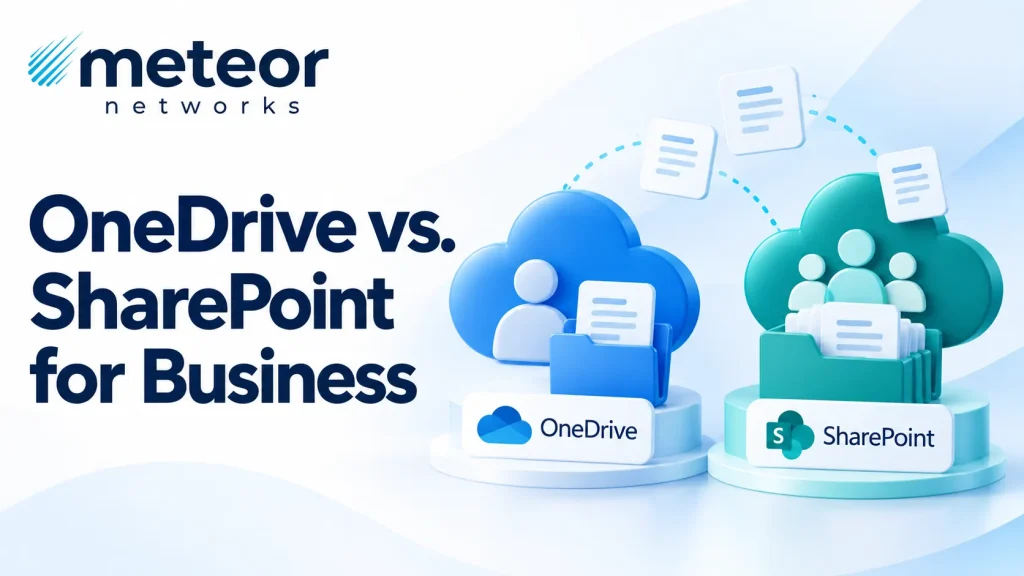
Microsoft 365 gives businesses several ways to store and share documents. Without a clear rule for where files belong, everyday work can become harder than it needs to be.
Use OneDrive for individual drafts and working files, and SharePoint for shared documents your business needs beyond one employee’s account. Clear storage rules improve collaboration, access, and handovers while reducing duplicate versions. Meteor Networks helps businesses organise Microsoft 365 files, manage permissions, and plan backup and recovery for essential records.
OneDrive vs. SharePoint: A Practical Comparison
This guide refers to OneDrive provided through your business Microsoft 365 account. Employees should use company-approved accounts and storage for business information.
| File or situation | Recommended home | Why |
| Working notes or an early draft you are preparing individually | OneDrive | Gives you an individual workspace before broader collaboration |
| A draft that needs a colleague’s occasional input | OneDrive can work | You can share the file with the people reviewing it |
| Client agreements, project records, and shared schedules | SharePoint | Gives the team an established location beyond one employee’s account |
| Company templates, policies, and procedures | SharePoint | Helps staff find the approved documents in one place |
| HR or finance records used by an authorised team | A restricted SharePoint site or library | Supports shared work with carefully controlled access |
The deciding question is simple: Will the business need this document independently of the person who created it? If the answer is yes, plan for it to live in an appropriate SharePoint library.
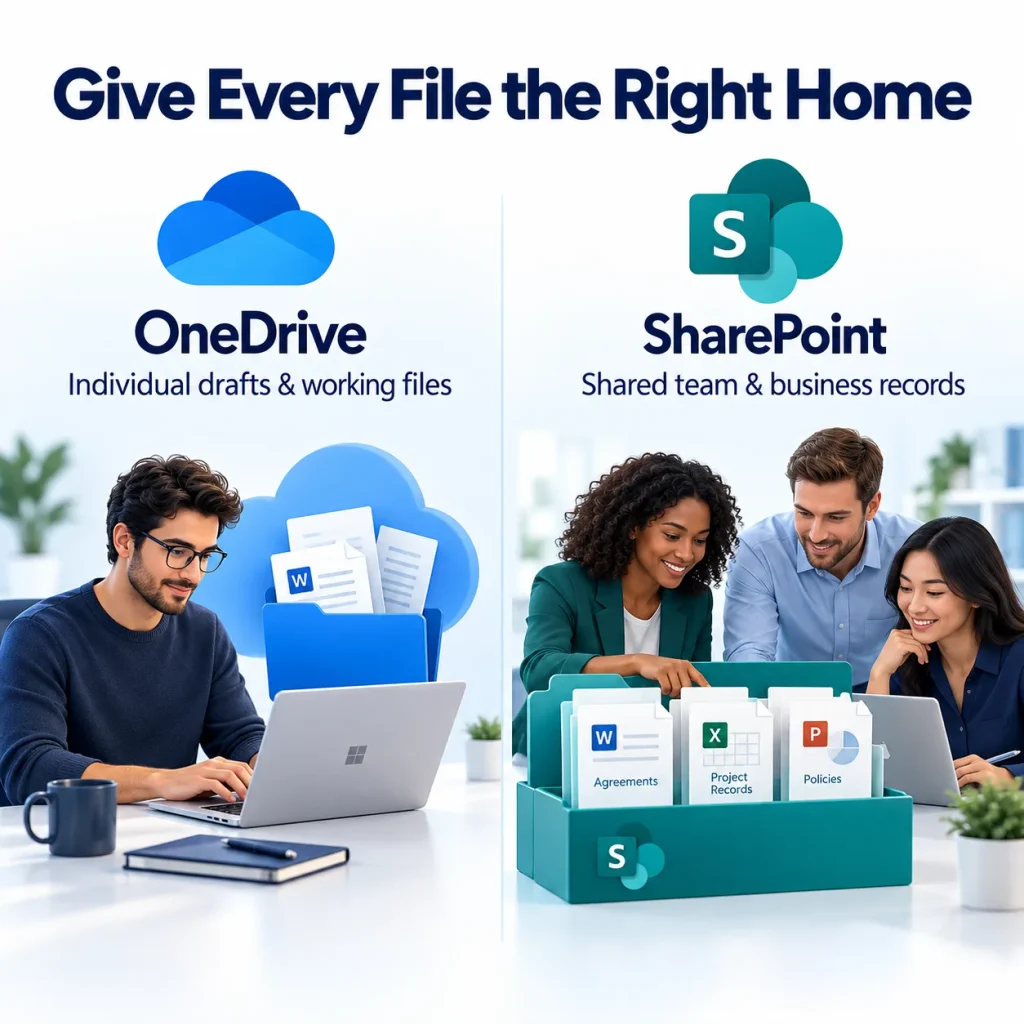
Use OneDrive for Work You Are Still Developing
OneDrive is useful when you are preparing a proposal, collecting working notes, or developing a draft before sharing it more widely. Files are generally private until shared, subject to your organisation’s administrative controls and policies.
You can invite colleagues to review or edit a OneDrive document. That makes it suitable for occasional collaboration, too.
The problem starts when an individual’s OneDrive becomes the permanent home for a department’s files. An entire team may depend on folders that were originally created for one person’s work.
For example, an account manager might start a proposal in OneDrive. Once it becomes an active client project, the agreed proposal and ongoing project documents should move into the team’s designated SharePoint location.
Use SharePoint for Files the Business Depends On
SharePoint document libraries provide a shared home for departmental, client, and project files. Access can be organised around the people responsible for that work.
This is particularly useful for documents that must remain available when responsibilities change: signed agreements, operating procedures, onboarding materials, and project deliverables.
However, storing a file in SharePoint does not mean everyone in the company should see it. HR, finance, and client-sensitive information still need appropriate permissions.
Give each shared area a clear purpose and someone responsible for keeping it organised. Use agreed naming conventions, review access when roles change, and make the current approved documents easy to identify.
Teams Files Can Live in Different Places
Teams is often where people encounter a document, but the storage location depends on how it was shared:
- Files uploaded to a Teams channel are stored in SharePoint.
- Files uploaded to a one-to-one or group chat are stored in the uploader’s OneDrive and shared with the conversation’s participants.
That distinction matters. Uploading an important document into a chat does not establish a lasting team filing system.
For ongoing project records, save the document in the agreed team library and share its link in Teams. This gives colleagues a consistent location to return to and reduces the spread of separate attachments.
Plan File Access Before an Employee Leaves
If essential documents live in an employee’s OneDrive, include those files in the offboarding process.
Before account deletion, IT should identify the records the business needs, transfer them to an appropriate shared location, and verify that the right people can access them.
Microsoft provides retention and access mechanisms for a deleted user’s OneDrive, but the outcome depends on your settings and applicable policies. Do not assume a manager automatically receives access or that a standard recovery window covers every situation.
A planned handover is easier than trying to recover a missing folder after the account has been removed.
Check Offline Access and Recovery Separately
Seeing a file in File Explorer does not necessarily mean a complete copy is stored on the laptop. OneDrive Files On-Demand can show online-only files that require an internet connection to open.
If staff need documents while travelling or working without reliable internet, use ‘Always keep on this device‘ for the required files or folders, where permitted by company policy. Allow the download to finish before going offline.
Recovery needs a separate check. Version history and recycle bins can help undo mistakes, but their protection has limits. Sync can also carry unwanted changes between devices and cloud storage.
Your IT team should confirm what can be restored, how far back recovery goes, and whether your Microsoft 365 backup arrangements meet the business’s needs.

Start With One Shared Folder
You do not need to reorganise every document in one afternoon. Start with a folder that causes regular confusion:
1. Identify the files people rely on.
Look for shared records sitting in individual OneDrive folders, chat uploads, and email attachments.
2. Choose their permanent home.
Set up the appropriate SharePoint site or library and agree who needs access.
3. Plan the move with IT.
Check permissions, important links, and any version history or metadata you need to retain. These can be affected by the transfer method.
4. Test the new location.
Ask the people who use the files to confirm they can find and open them. Resolve duplicate copies according to your retention requirements.
5. Document the rule.
Include file locations and sharing expectations in onboarding and offboarding procedures.
Make Microsoft 365 Easier for Your Team
Clear file locations help employees spend less time searching and give your business better control over shared information.
Meteor Networks helps Ontario businesses organise SharePoint libraries, configure OneDrive and Teams, manage permissions, and put Microsoft 365 backup and recovery protections in place.
Talk to Meteor about your Microsoft 365 setup and build a file-sharing structure that supports the way your team works.