
A dispatch employee needs a printer driver installed. A hotel receptionist needs an application updated. Giving them administrator access can solve the immediate problem, but leaving that permission in place gives them authority to approve other changes long after the original task is finished.
Most employees should use standard accounts for everyday work. Local administrator rights should be reserved for approved tasks that require them, with a clear process for requesting help. Meteor Networks helps Ontario businesses assess computer security and plan access controls around how their teams work.
What Local Administrator Rights Allow
Local admin rights give a user elevated control over a particular computer. Depending on its configuration, that can include installing system-wide software, adding drivers, changing user accounts, modifying protected settings, and installing background services.
This is different from a Microsoft 365 administrator role, which manages cloud services. An employee can have admin rights on a laptop without administering company email or SharePoint. Reviewing cloud roles does not establish who can make administrative changes on your computers.
The focus here is business Windows computers and the permissions employees use to work on them.
Why Permanent Admin Rights Increase Risk
Consider a fake software update downloaded from an untrusted website. When it requests administrator approval, an employee with local admin rights may be able to approve it themselves. If elevated, the program can make changes that would otherwise require IT authorization.
Windows User Account Control (UAC) normally runs applications with limited permissions, even for administrator users, and prompts when elevation is needed. However, a prompt does not verify that software is safe. With typical settings, an administrator can consent to elevation, while a standard user must provide valid administrator credentials.
Using a standard account creates a useful approval point before many system-level changes. It can also reduce accidental configuration changes and unauthorized software installations.
It does not stop every attack. Malware running without admin rights can still steal information or damage files the user can access. Some applications also install within a user’s profile without elevation. Businesses still need supported software, updates, endpoint protection, application controls where appropriate, and tested backups.
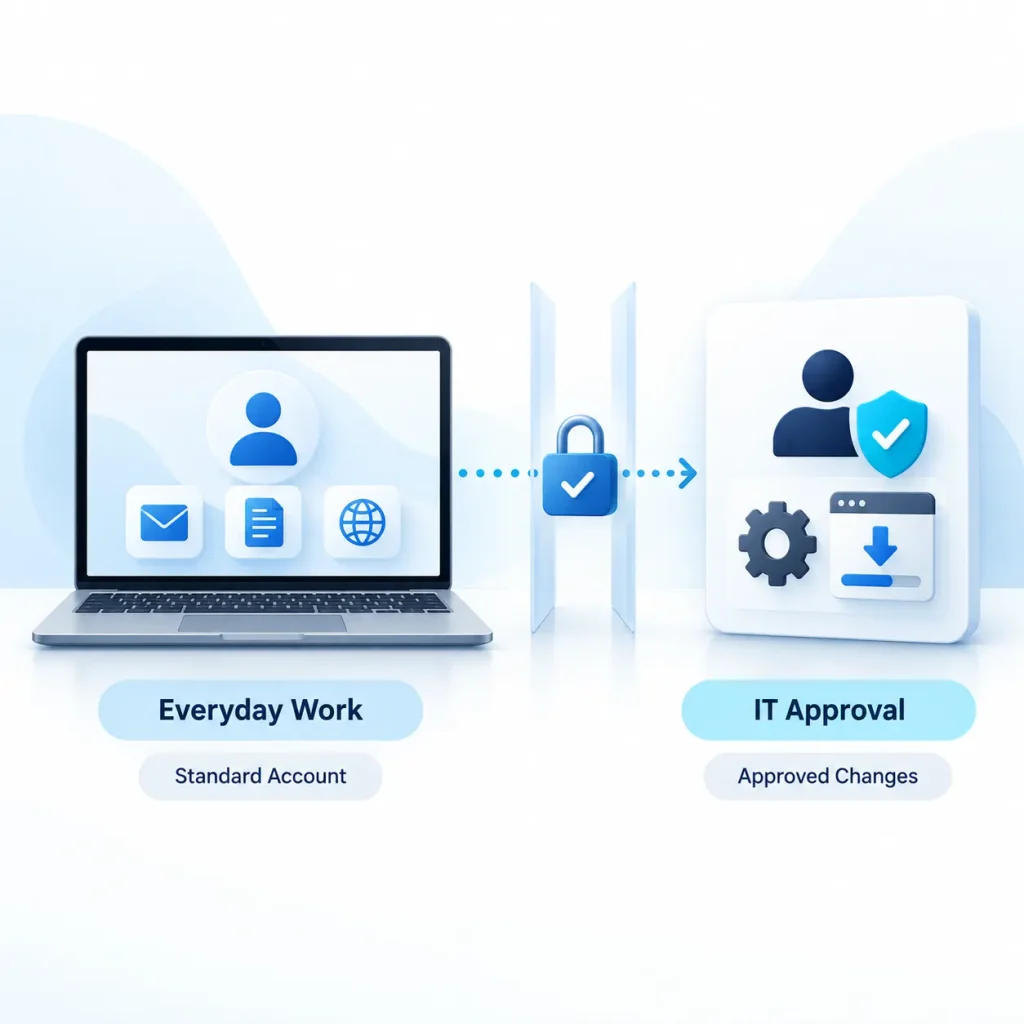
Everyday Work Usually Does Not Need Admin Access
Email, web browsing, online meetings, document editing, and printing through an already configured printer normally work from a standard account. Access to business applications and shared files depends on the permissions assigned for those resources.
The distinction is between using an application and making changes to the computer that supports it.
| Work requirement | Practical approach |
| Reception staff use an installed booking application | Keep daily work on a standard account; IT handles installations and system changes |
| A dispatch team needs a new printer driver | Have IT verify and deploy the driver |
| A clinic application requests elevation whenever it opens | Investigate the application with the vendor and test a supported configuration |
| A technical employee regularly tests approved software | Assess controlled elevation or a separate administrative account with defined limits |
These are examples to guide a review, not assumptions about every organization’s software.
Give Staff a Reliable Way to Request Changes
Removing admin rights works best when employees can get approved changes completed without avoidable delays. Give them one support route and ask for the application name, business purpose, official vendor link, and deadline.
IT can then check the installer, licensing, compatibility, and security implications. Suitable options include:
- Managed deployment: IT distributes approved applications and updates through device management tools.
- IT-assisted installation: An authorized technician completes the task through an approved support session without sharing administrator passwords.
- Controlled elevation: Where supported, privilege-management tools allow a specific approved application or task to run with elevated permissions.
- Separate administrative accounts: Authorized technical staff use these only for administrative tasks, keeping email and routine browsing on standard accounts.
The available options depend on your management tools and licenses. A one-time installation request should not automatically become permanent membership in the local Administrators group.
Remove Unnecessary Rights Without Interrupting Work
1. Review Each Computer
Review Each Computer
Ask IT to identify who belongs to the local Administrators group, including inherited group access, old setup accounts, vendor accounts, and shared credentials. Include remote laptops and devices outside the main office.
Record why each retained permission is necessary and who approved it.
2. Confirm a Working Support and Recovery Route
Confirm a Working Support and Recovery Route
Before changing permissions, verify that authorized IT staff can still administer and recover each device. Protect administrator credentials and avoid reusing one local administrator password across the fleet.
Windows Local Administrator Password Solution (Windows LAPS) is one option for managing and rotating local administrator passwords on supported, appropriately configured devices. It manages credentials; it does not decide which employees should retain admin rights.
3. Test Business-Critical Applications
Test Business-Critical Applications
Pilot the change with representative users. Check normal application use, printing, scanners, specialist peripherals, remote work, and the update process.
If an older application fails, investigate what actually needs elevation. A supported update or targeted configuration change may resolve it. Do not grant broad permissions to system folders simply to dismiss an error.
4. Define and Review Exceptions
Define and Review Exceptions
For a genuine exception, document the task, device, approver, scope, and expiry or review date. Prefer the narrowest practical permission. Temporary full admin access still carries risk while enabled.
Review rights when roles change, devices are reassigned, or vendors finish their work. When an employee leaves, revoke their access at the required departure time rather than waiting for a routine review.
How Meteor Networks Can Help
Meteor Networks provides cybersecurity services for Ontario businesses, including security assessments, endpoint protection, and controlled access.
If you are unsure who has local admin rights, start with a device access review. We can help assess unnecessary permissions and discuss a practical support process for approved changes, including the applications your business depends on.
Call Meteor Networks at (905) 595-4444 or schedule a discovery call to discuss your computer security needs.